
General features
Project Files Management – buttons for creating, saving and loading projects as files
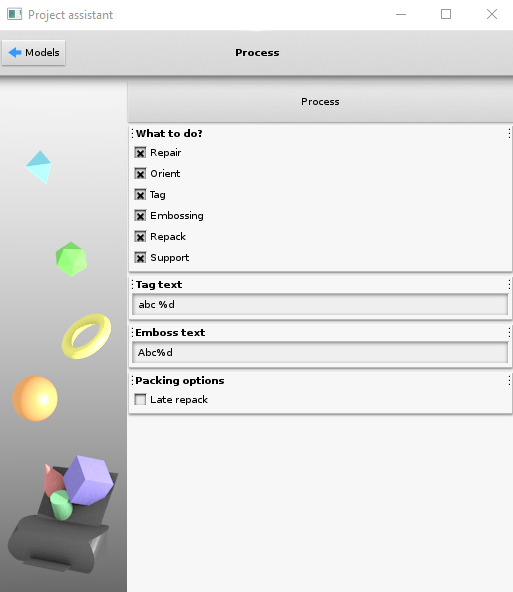
Assistant window for simple workflow– interface for quick execution of all main operations
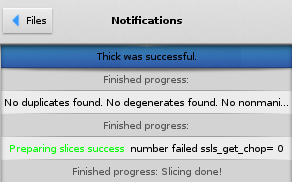
Progress/error notifications – sidebar tab containing all notifications sent by program
Project autosave – automatic save of created project every 5 minutes
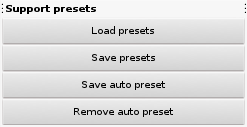
Preset Setup – buttons for saving, loading sets of all program settings
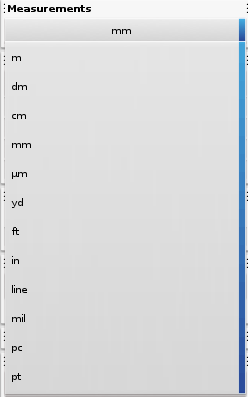
Unit Selection – wide selection of units used by all program controls
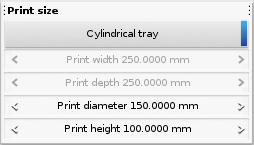
Tray Size And Shape – customization of tray shape and dimensions
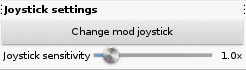
3D Joystick support – support of a 3D joystick for viewing and transforming objects
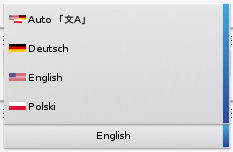
Language setting – GUI languages: English, German and Polish
Window modes – program’s GUI can be contained in either 1 or 3 windows
Touchscreen mode – support for touchscreen mode
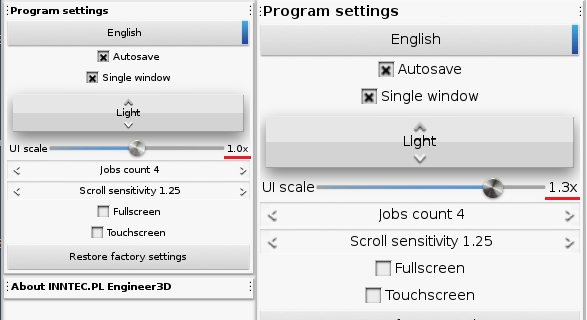
UI scaling tool – adjustable size of all elements of the user interface
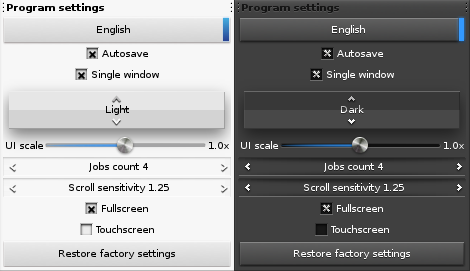
Interface theme selection – selection of dark or light theme for the program
Processor Thread Limit – adjustable limit on the number of processor threads that the program can utilize

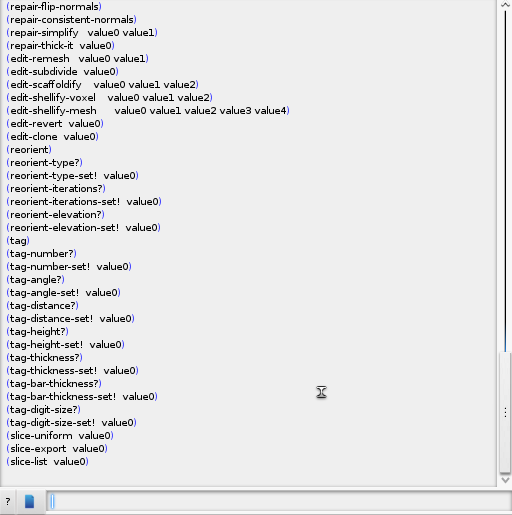
Script – workflow automation by loading or writing code with access to multiple functions, code can cover repeatable actions making the workflow faster
Help features
Tip of the day – helpful hint window shown on program launch
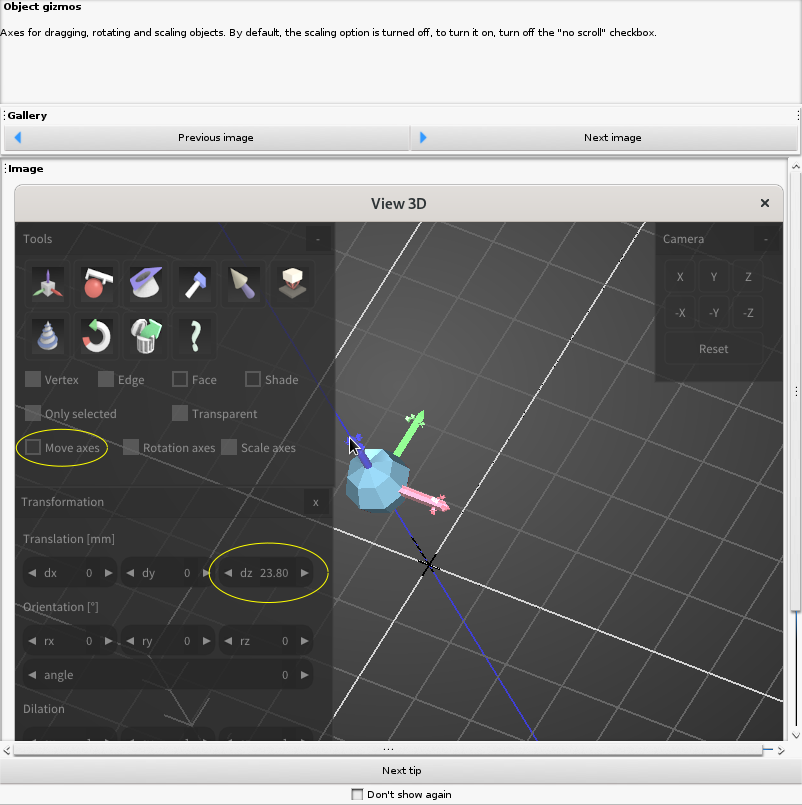
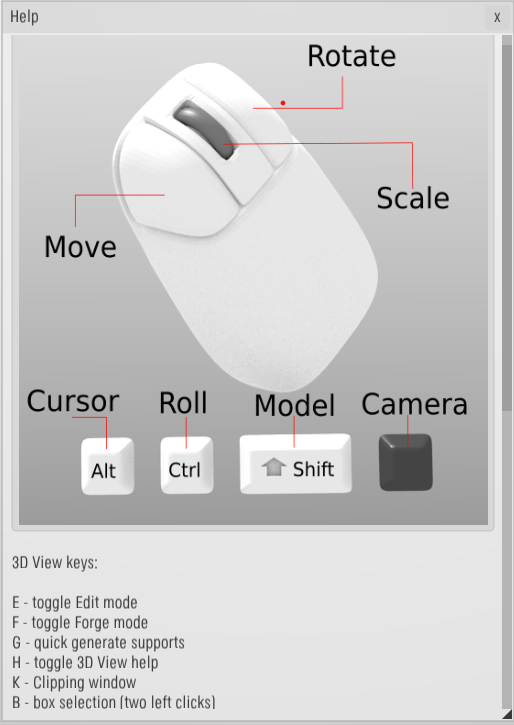
Help Dialogues – detailed explanation of every tool in the main view
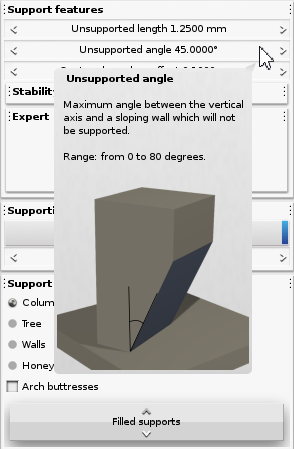
Tooltips – short description of every control in sidebar menus
Tray and Model Management features
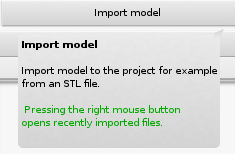
Model Import – simple loading of any STL, OBJ, PLY, DAE, DXF, X3D file
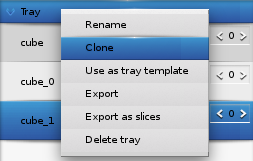
Model and tray cloning – quick duplication of individual objects or whole trays
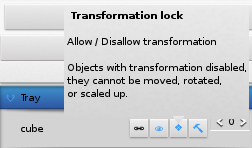
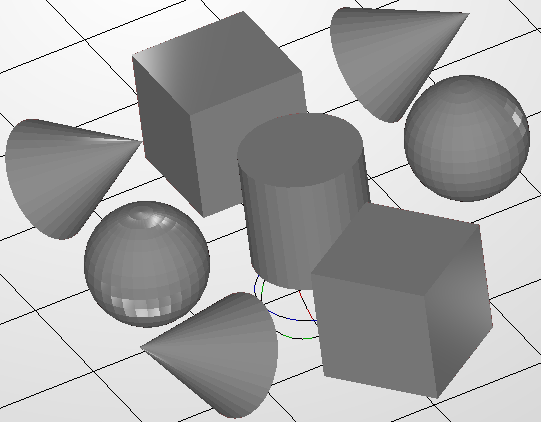
Adding simple objects – buttons for adding simple geometric sculptures
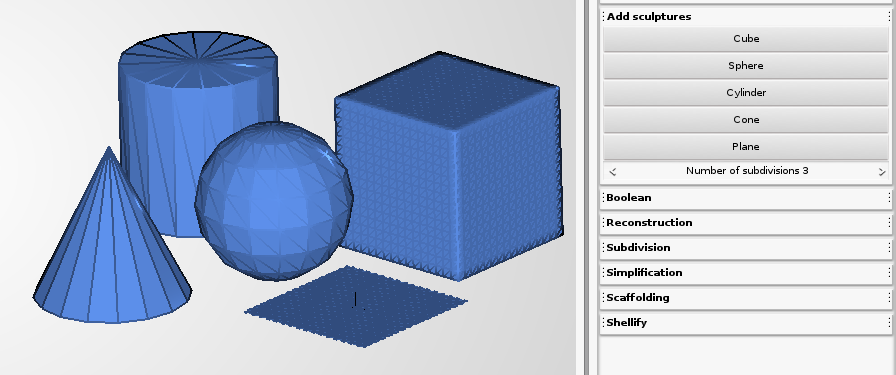
Model linking – linking models to ensure all are modified together
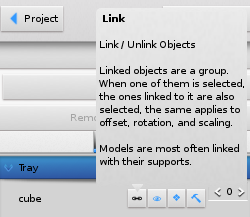
Model protection from transformations/mesh editing – locking objects to prevent their transformation and/or mesh editing
Viewing features
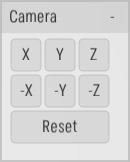
Quick camera controls – instant positioning of the camera with buttons or hotkeys
Mesh Elements Display – toggling the visibility of mesh vertices, edges and faces
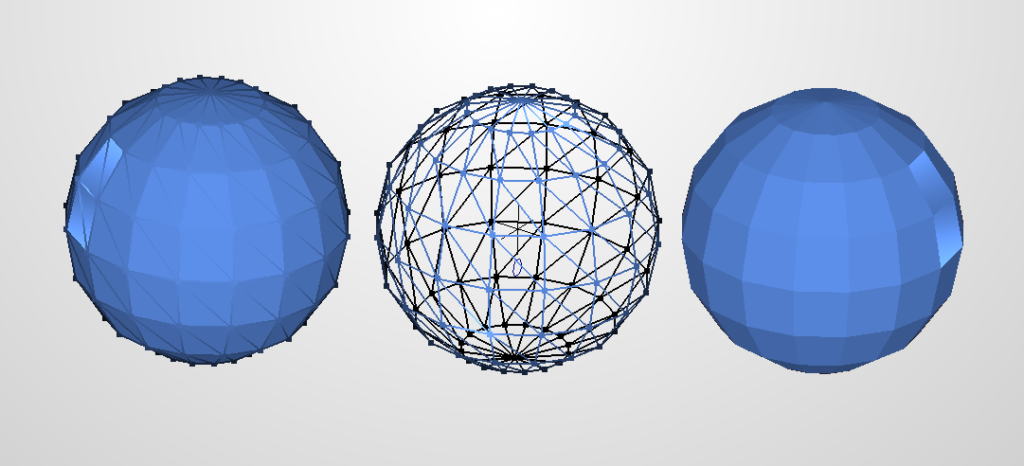
Model shading modes – switching between efficient and detailed shading modes
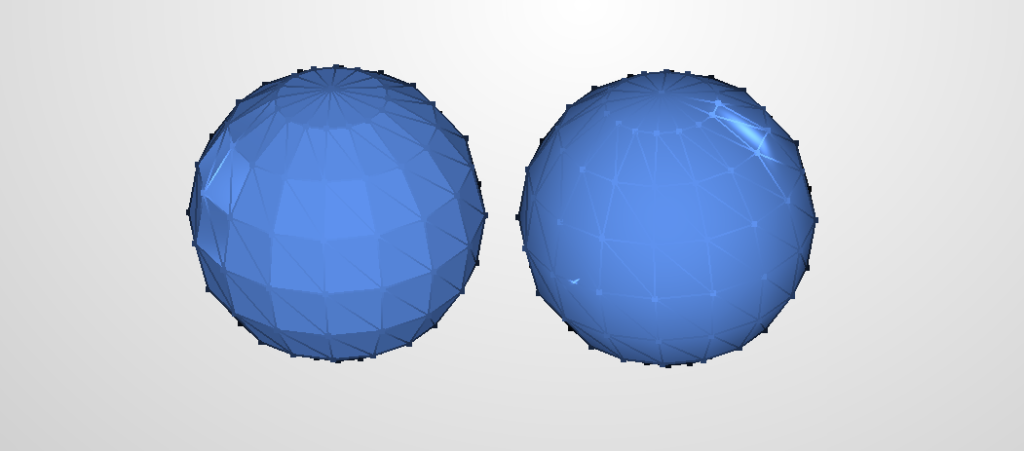
Model visibility, layers – toggling the visibility of models individually or per layer
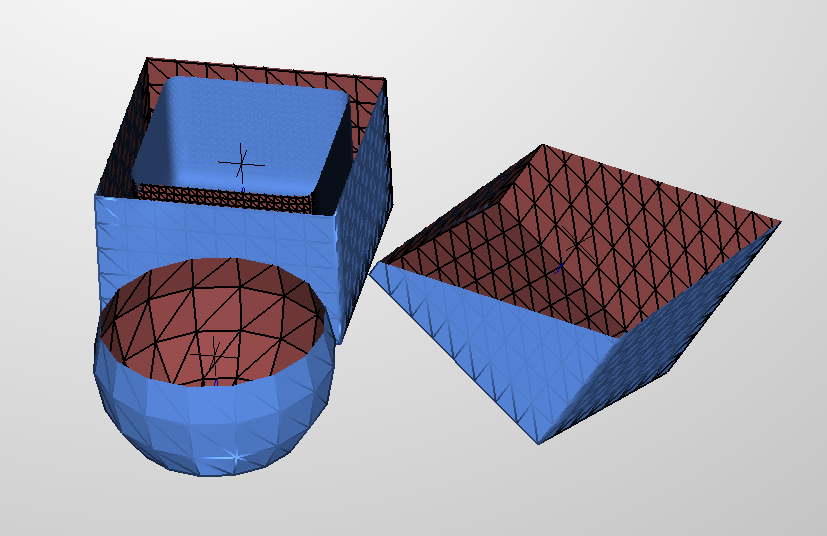
Cross-section viewing – tools allowing to view the inside of the models
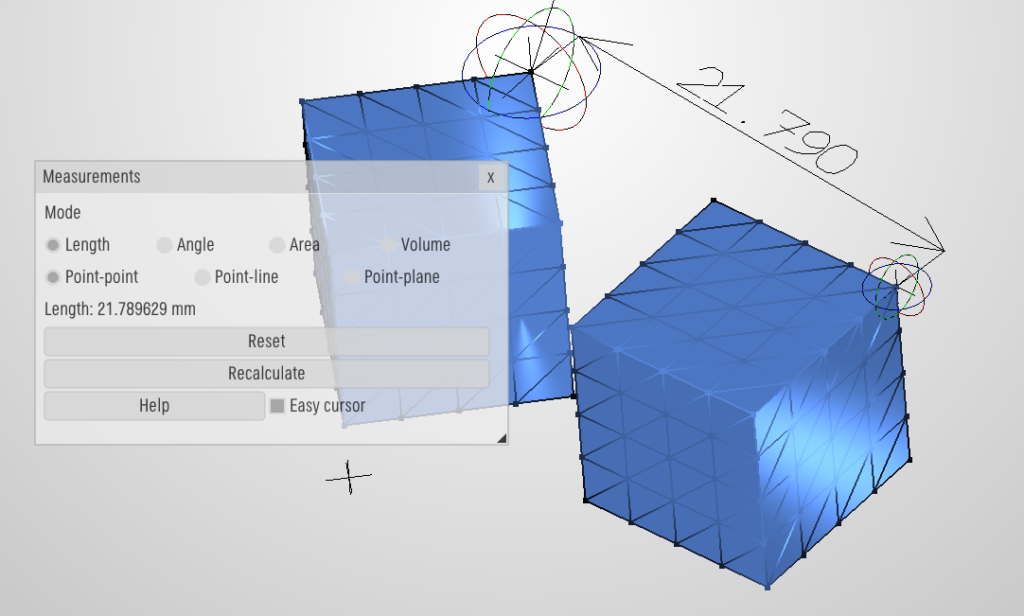
Measurement tools – tools for measurement of distances, angles, areas, and volumes
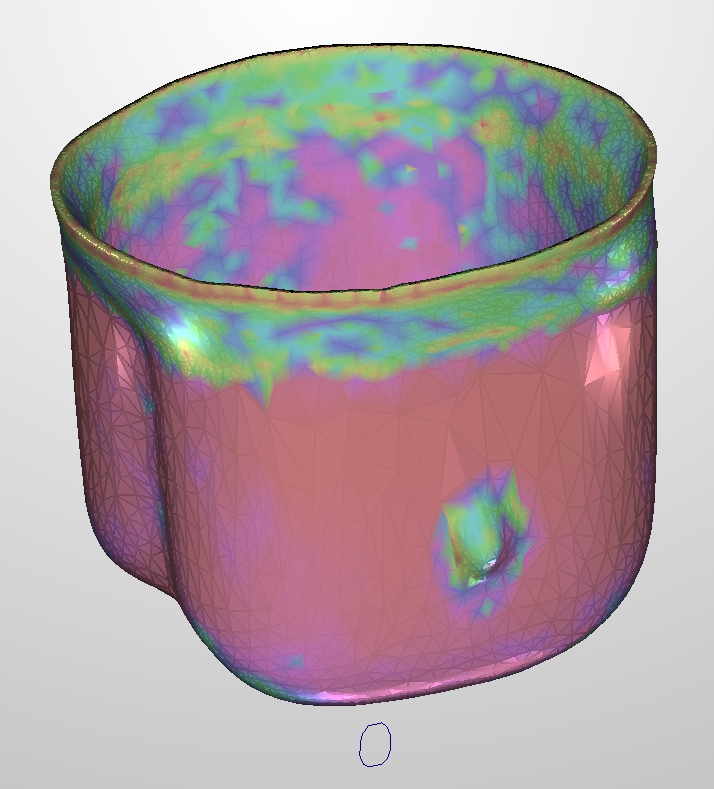
Mesh Coloring – colors graphically represent various information about the mesh
Model Transformation features
Model Transformations – moving, rotating and scaling of objects
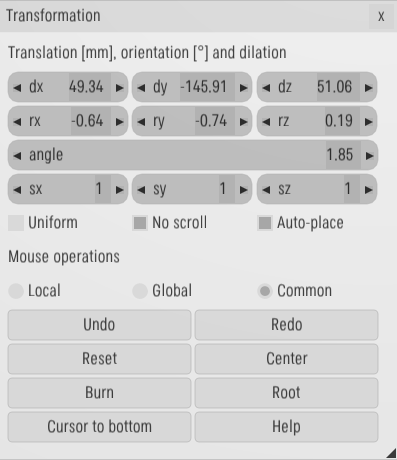
Quick Transformations – hotkeys allow quicker transformation along selected axes
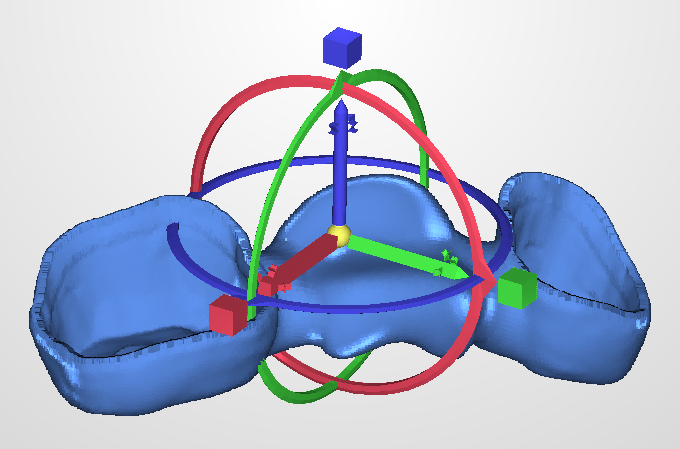
Easy Transformation Gizmos – simple widgets allow model transformation by clicking and dragging
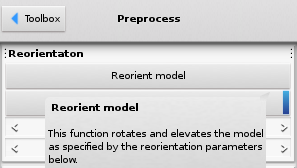
Automatic model reorientation – procedure for automatically rotating and elevating objects before support generation
Automatic placement of models – an automated tool for packing multiple models onto one or multiple trays
Mesh editing features
Identify and show problems in model mesh – procedure highlighting problems with the mesh
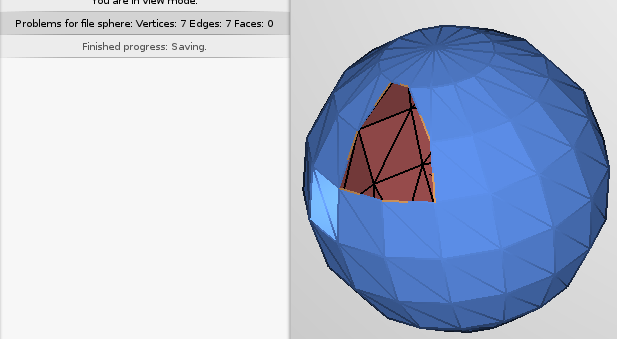
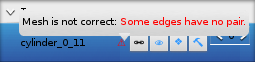
Automatic flawed mesh warning – automatic detection of any error in the mesh
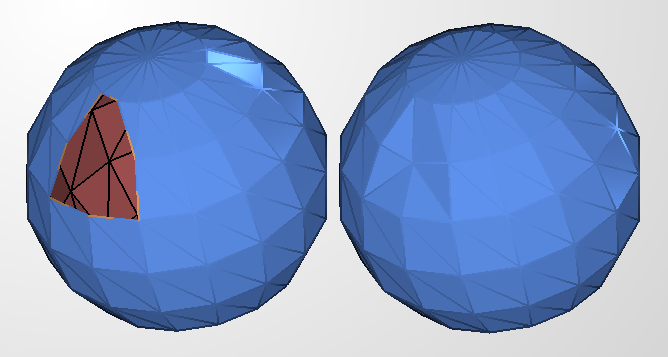
Model mesh repair – procedures for: patching holes, fixing bad tessellation, removing zero-area, disconnected and duplicated triangles
Model surface orientation adjustment – automatic unification of a model’s surface orientation
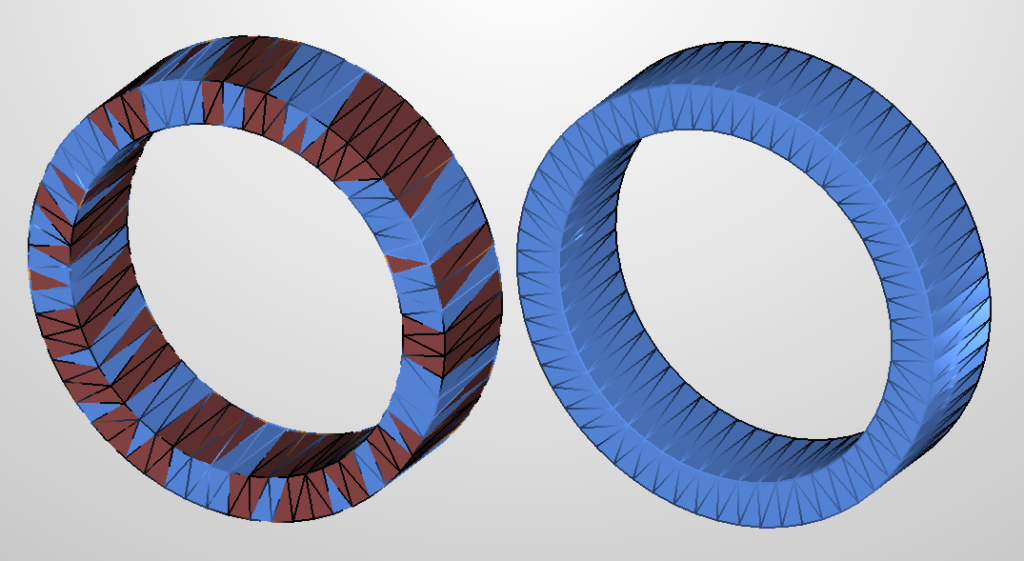
Model thickness adjustment – precedure forcing minimum thickness of a model
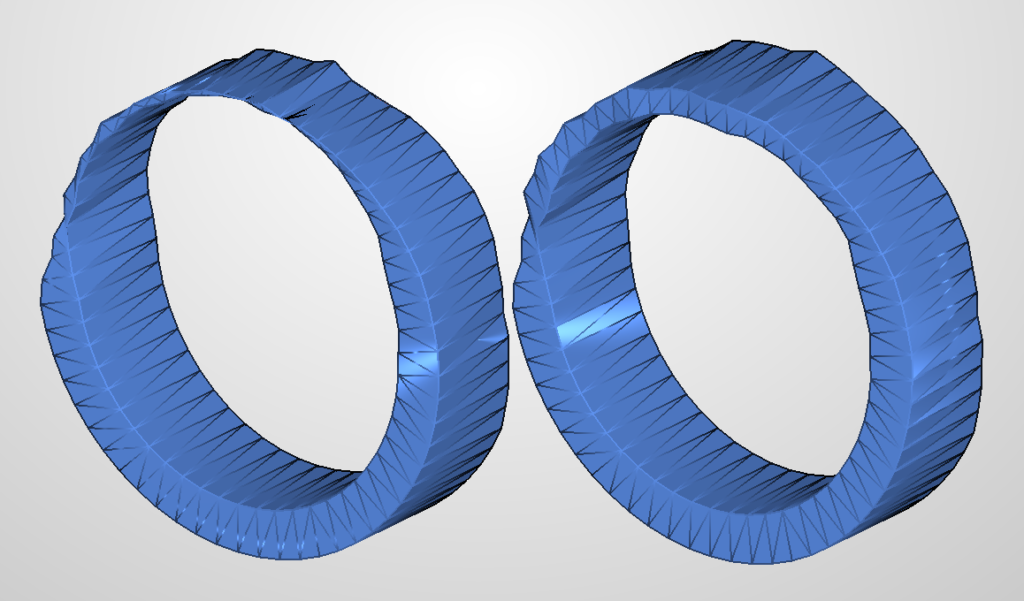
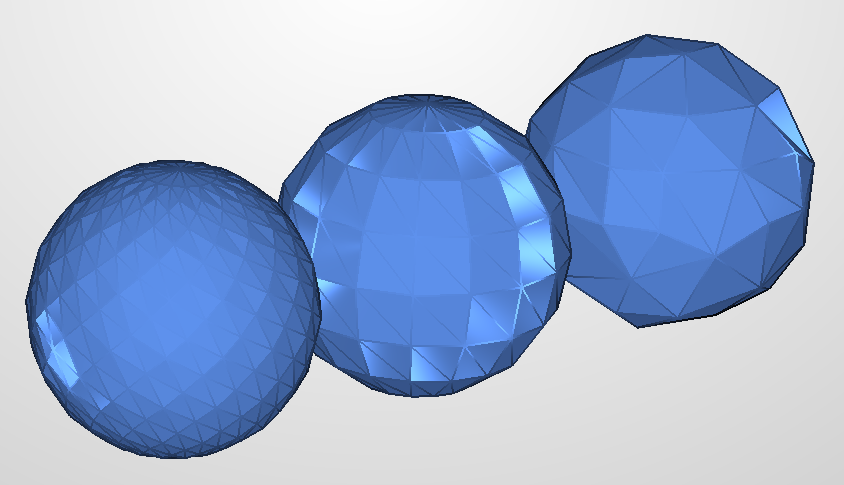
Model tessellation and detessellation – operations that increase or decrease the number of triangles in the mesh of a model
Boolean operations – module for performing boolean union, difference and intersection operations, additional “knife” operation cuts objects into pieces along a surface
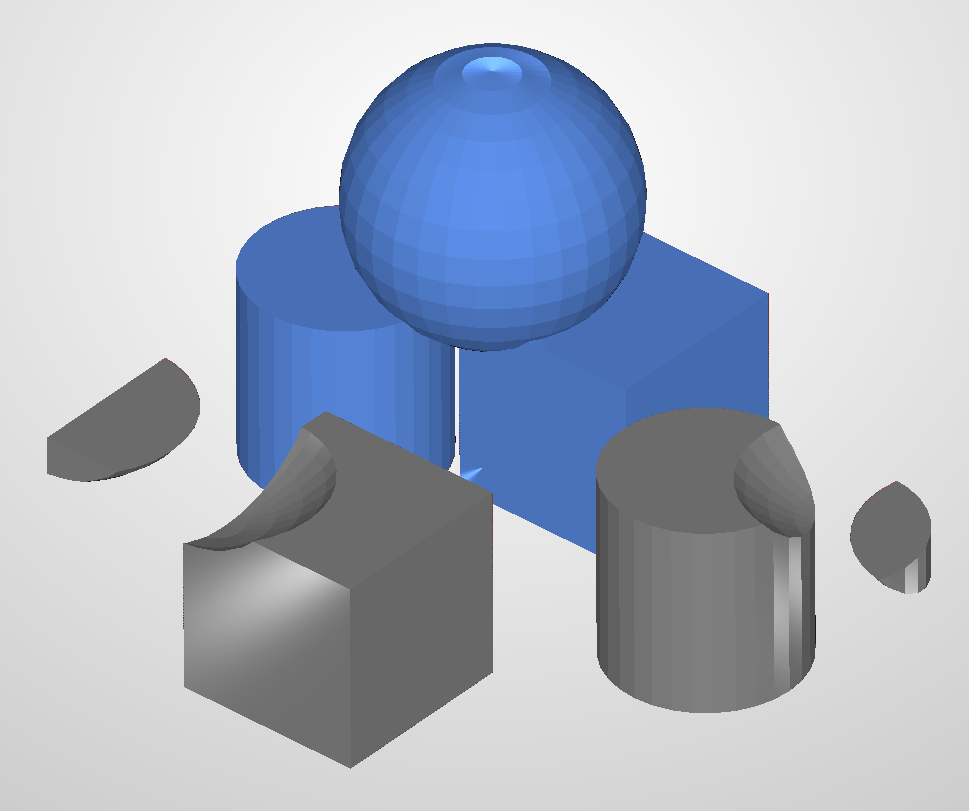
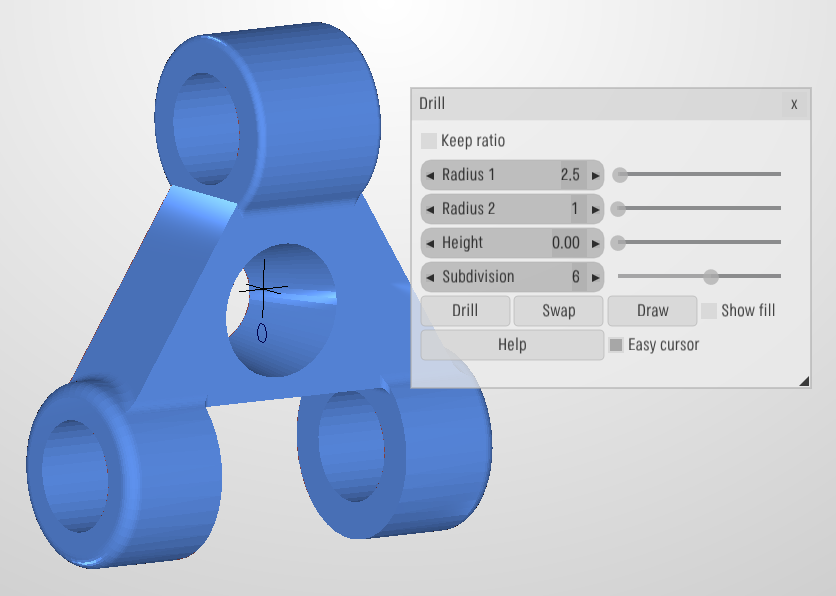
“Drill” tool – simple GUI for performing boolean subtraction operation on a model
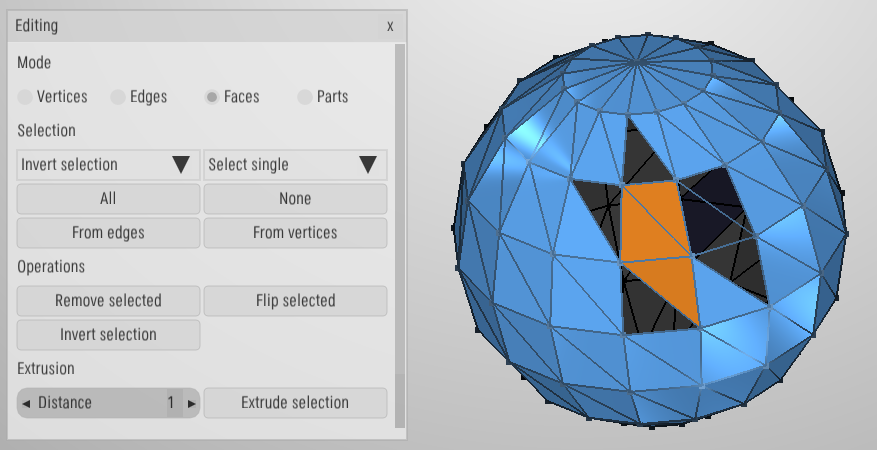
Manual Mesh Editing – “Edit mode” for manipulating individual vertices, edges, and faces of a model
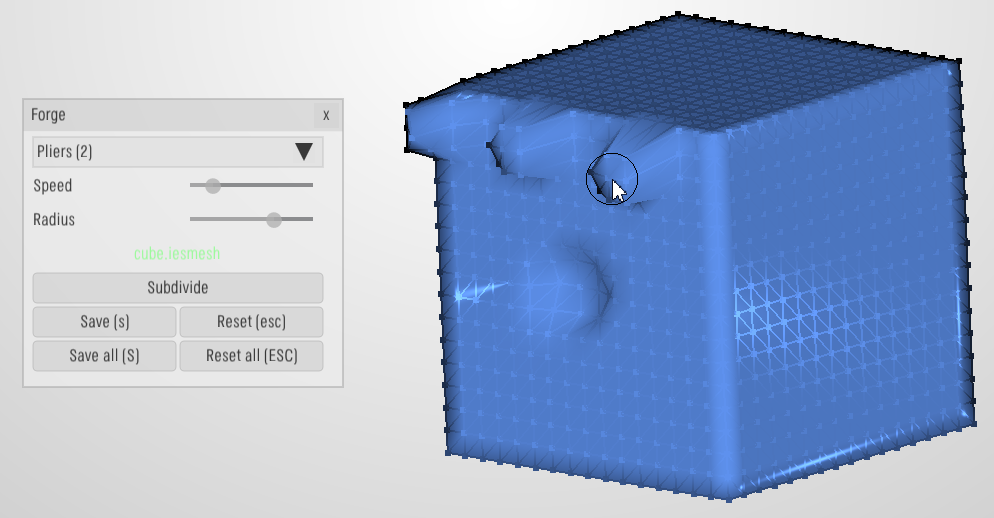
“Forge” tool – a simplified tool for mesh editing using the mouse
Hollow-out model – operation for turning a model into an empty shell of a set thickness
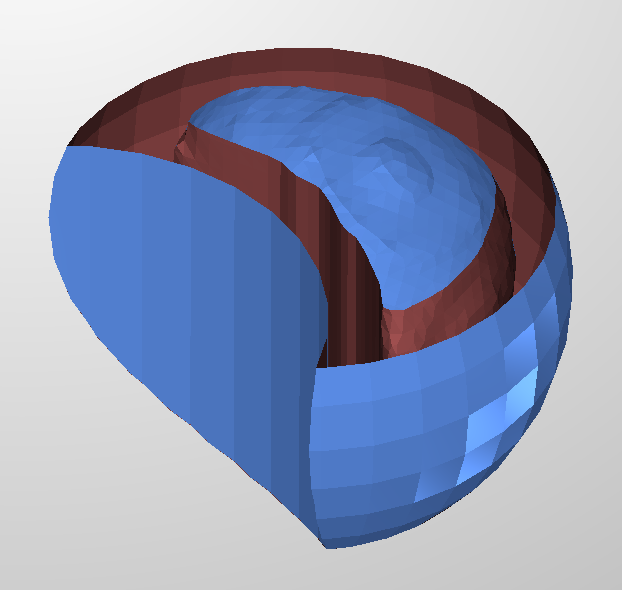
Generate openwork structure in the model – generation of a self-supporting openwork structure inside a model to decrease the total weight
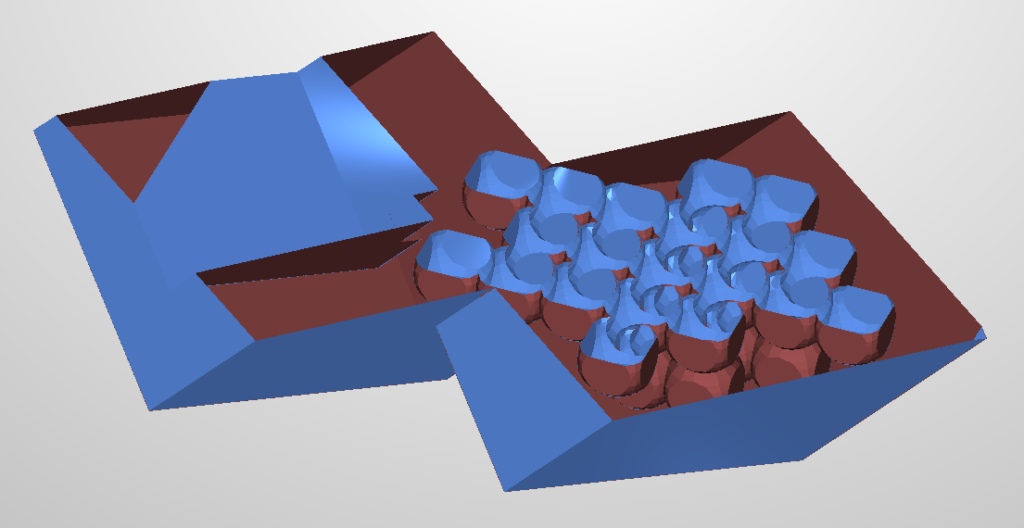
Mesh reconstruction – total remaking of a model’s surface into a vexel-based structure, used for very damaged models
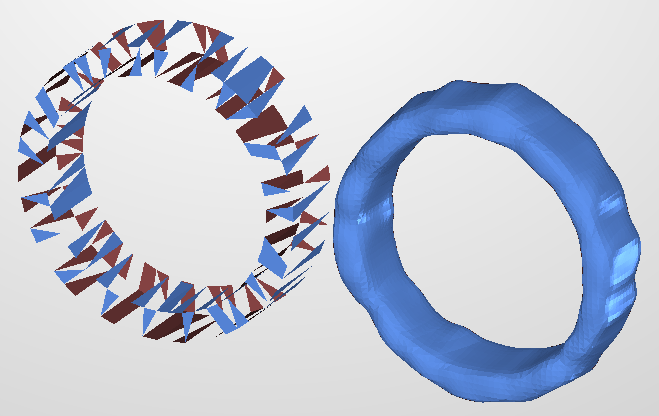
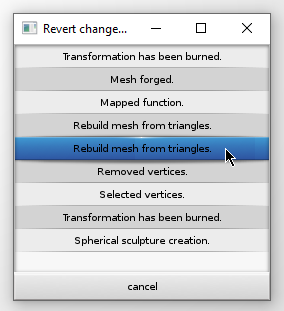
Mesh Editing History – “Revert” tool serves to undo or redo any changes made to a model’s mesh
Generation features
Tag generation – self-supporting tags, attached to selected objects, containing user-defined string
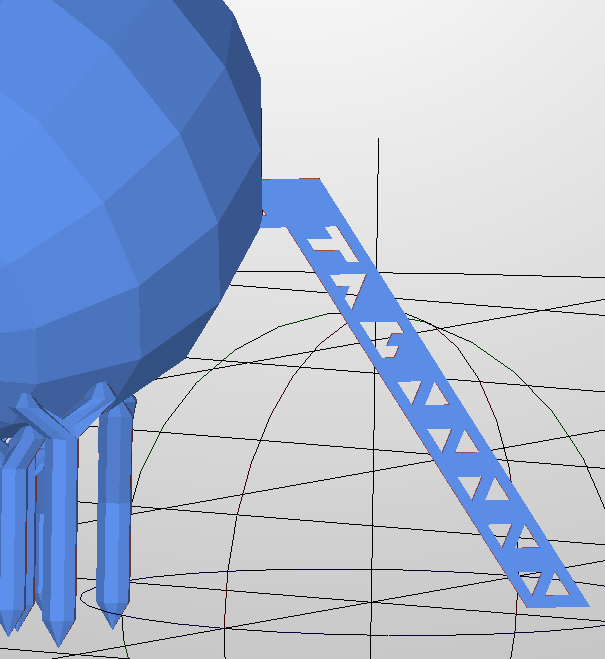
Manual tags generation – tool for manual placing of tags
Model embossing – tool embeds user-set characters into selected models’surfaces
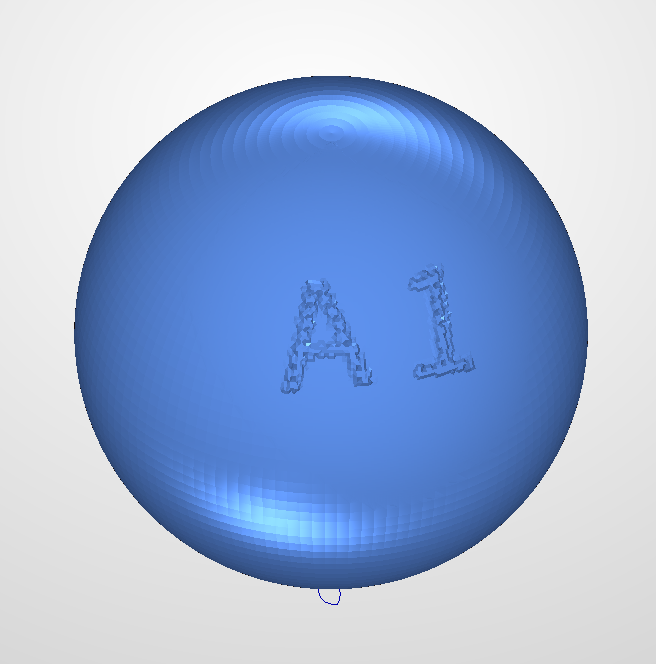
Manual embossing – tool for manual selection of embossing locations
Analysis of surfaces to support – analysis of a model’s mesh to find and highlight surfaces that need supporting
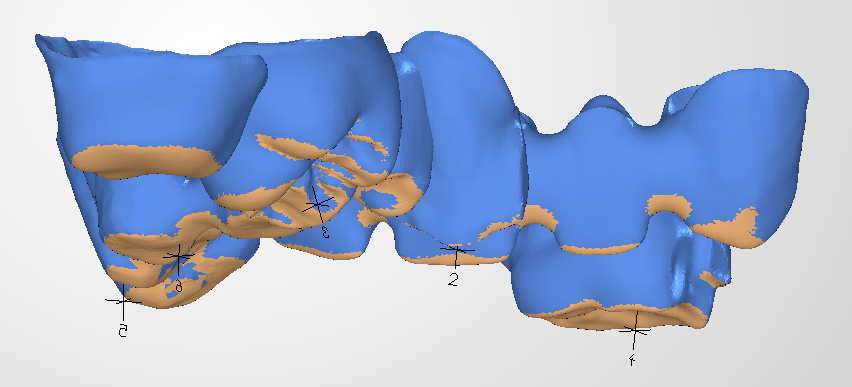
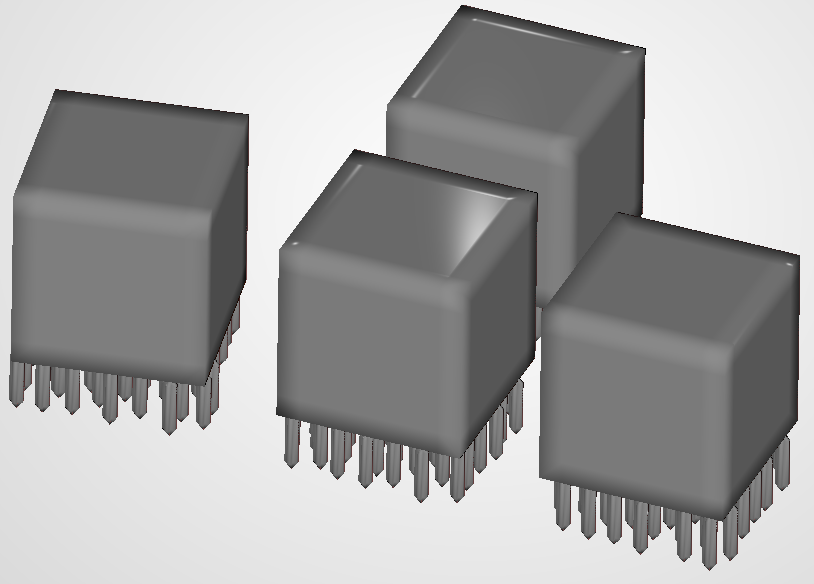
Automatic support generation – quick generation of supports for all selected models
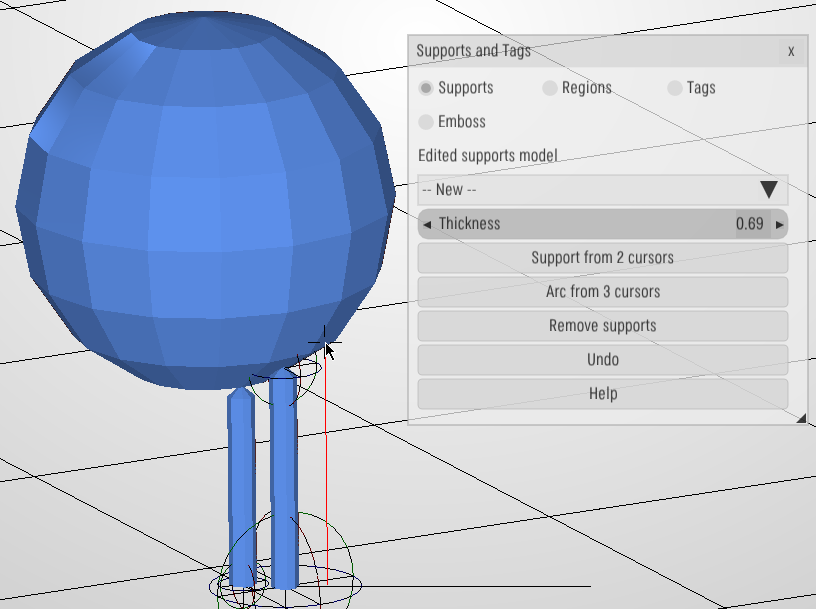
Manual support generation – tool for manual generation of individual supports
Support regions – tool allows selecting multiple parts of a model’s surface to be supported with differently configured supports
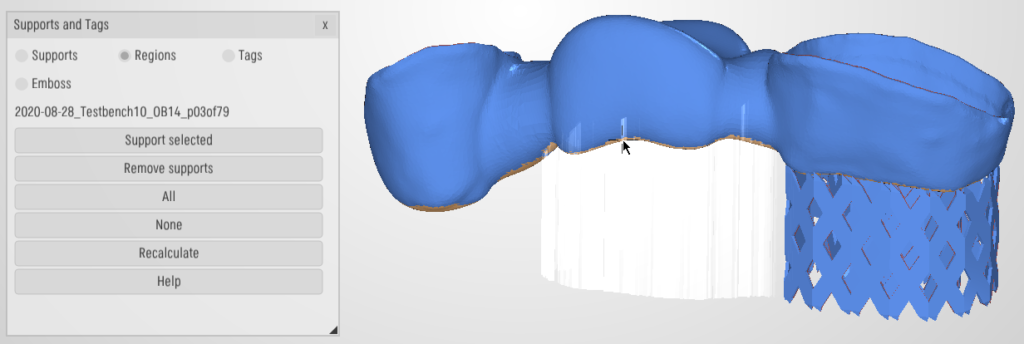
Support fill setting – control determining if generated supports will be marked to be printed as filled objects or as outlines

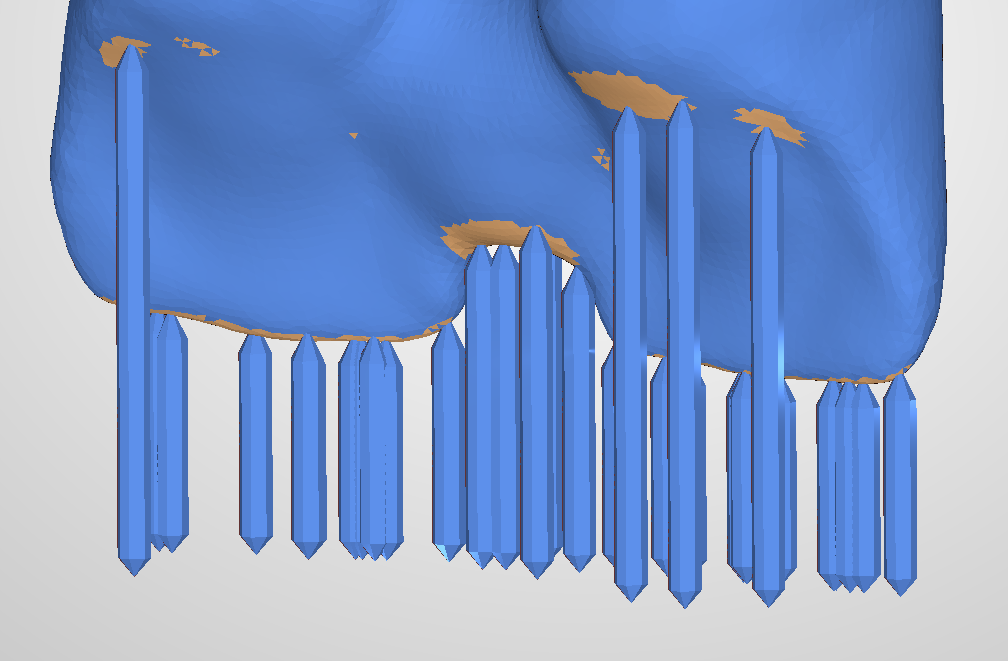
Column supports – generation of simple, cone-terminated rod supports with different possible cross-sections
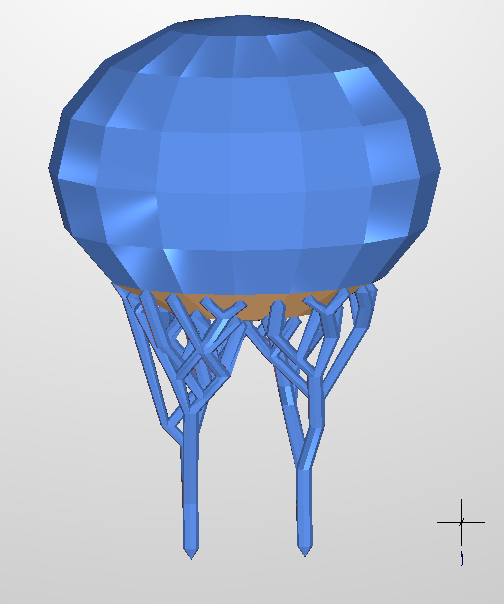
Tree supports – generation of tree-topology, cone-terminated rod supports that branch out at a set angle up to a set radius
Wall supports – generation of segment-based, sawtooth-terminated wall supports
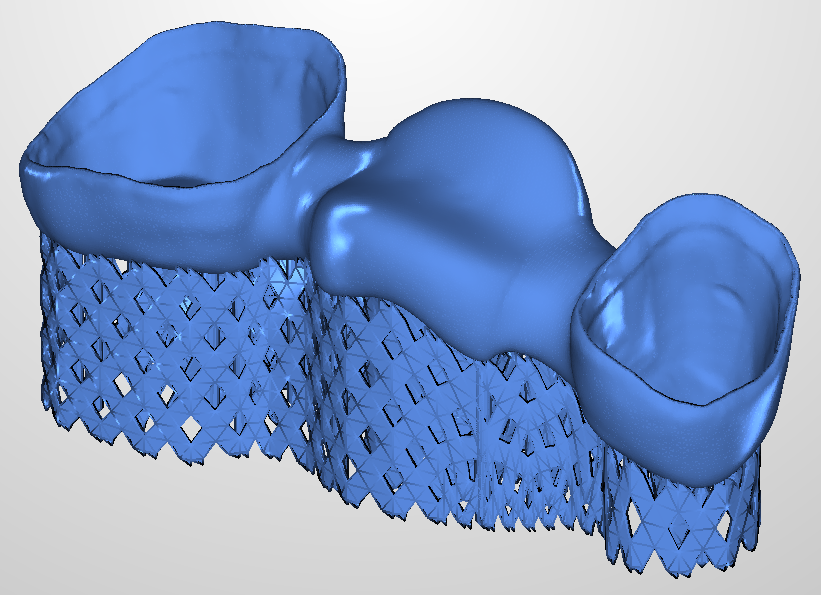
Honeycomb supports – generation of a thin, complex, grid-based support structure that penetrates the model at many points and angles
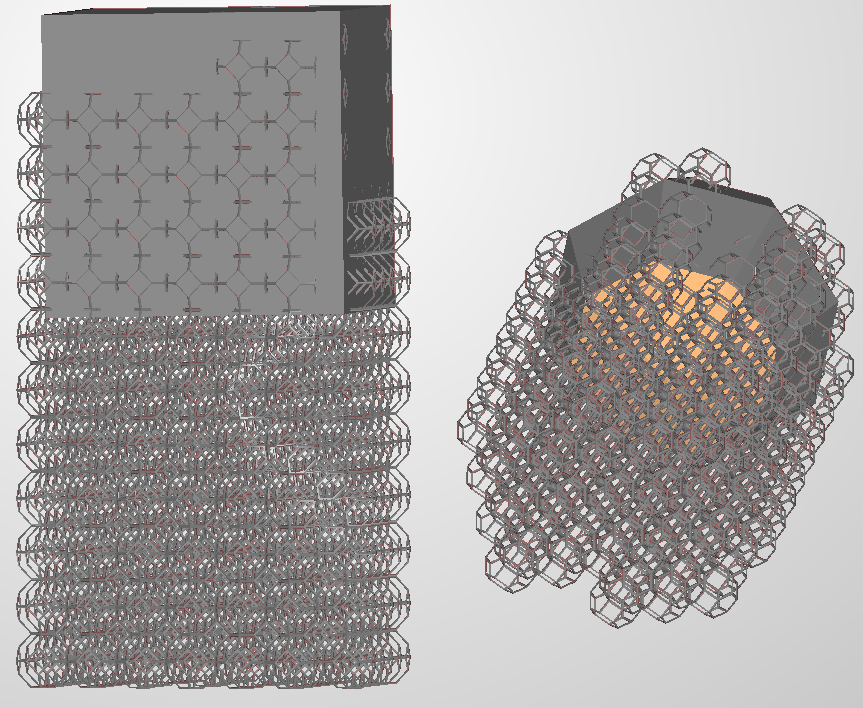
Arched supports option – generation of non-invasive, arched supports that penetrate the model at an angle
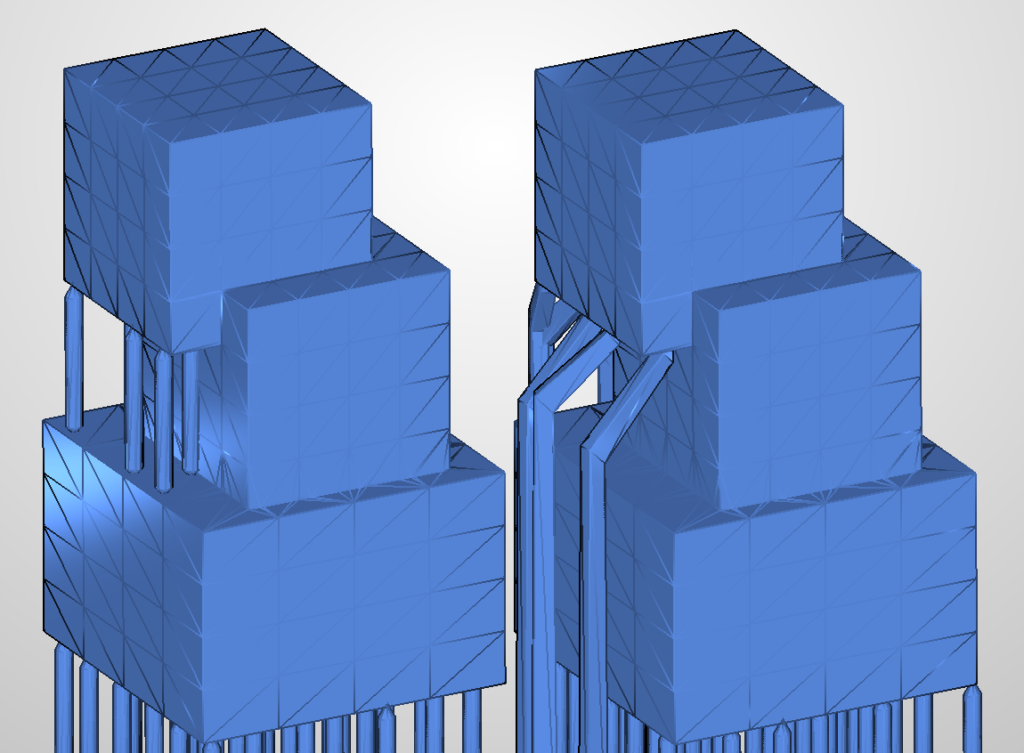
Stabilizing supports option – generation of additional supports that ensure stability when printing
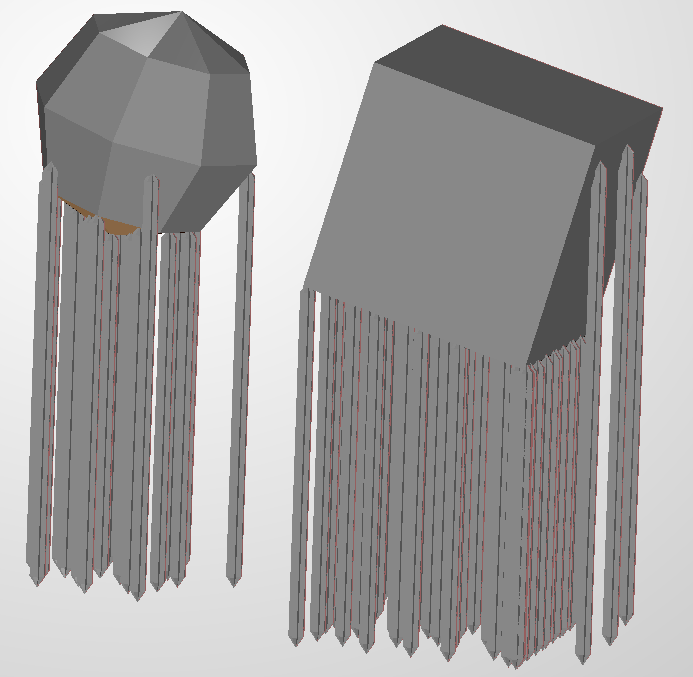
Selective exclusion of supports – tools forbiding the generation of supports within set volume or above set height
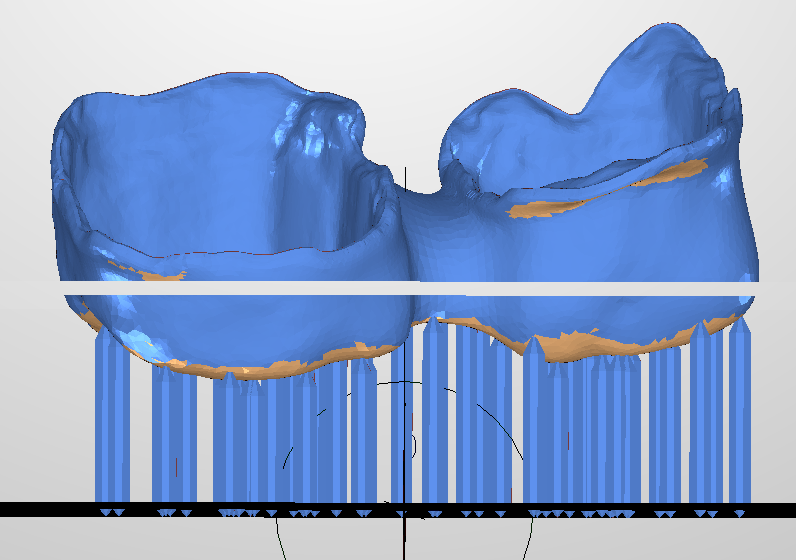
Export features
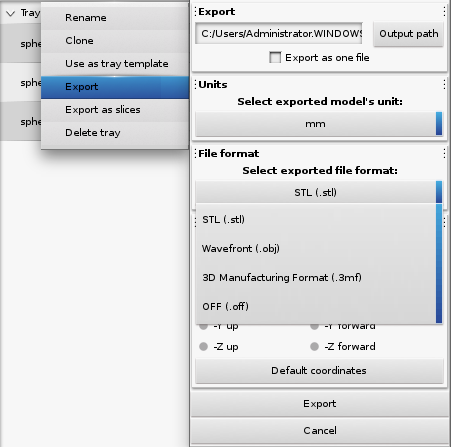
Export as 3D models – export of trays to formats: STL, OBJ, 3MF, OFF
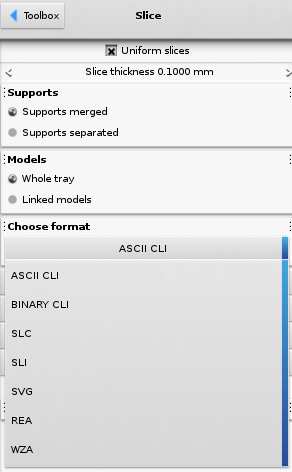
Export as slices – export of trays to slice formats: CLI, SLI, SLC, SVG, REA, WZA
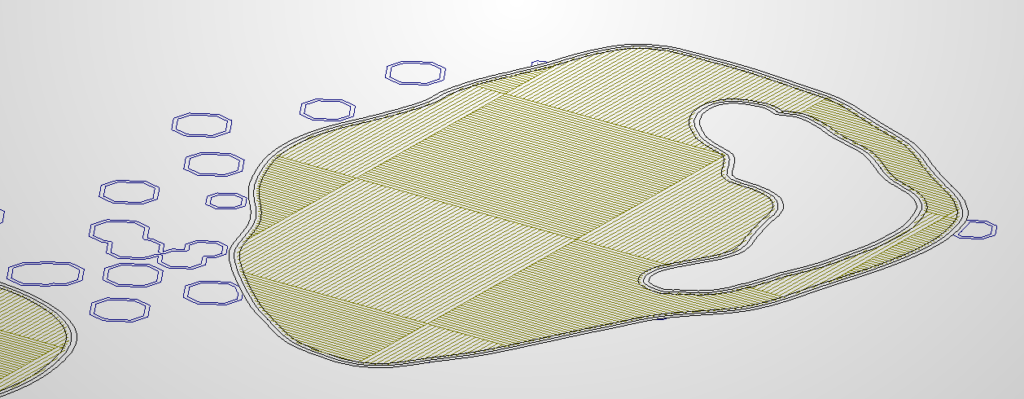
Generated slices preview – preview animation showing every generated slice, starting from the bottom
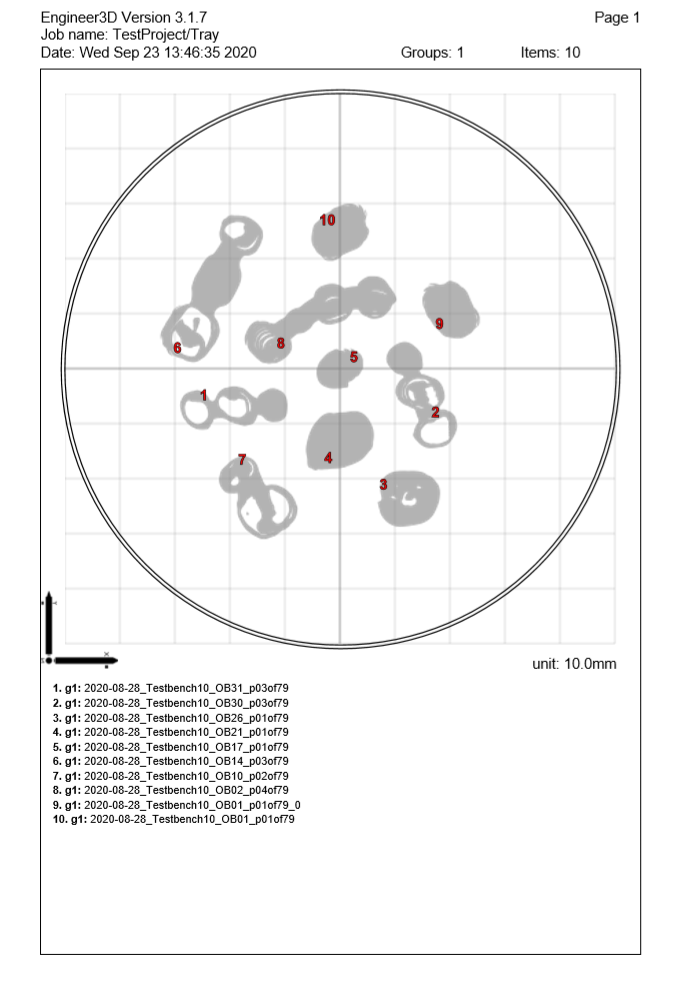
Slice export report generation – report generated along with slice output files, containing a top-down view of the tray and a list of exported objects
 English
  German